CapCut vs Alight Motion (2026): Which Video Editing App Is Better for Creators?
I’ve spent the better part of the last two years editing on my phone, mostly because my laptop fan sounds like it’s about to take off and I just gave up waiting for it to render anything. Somewhere in that time, in the CapCut vs Alight Motion debate, these two apps became the only ones permanently sitting on my home screen, the kind you don’t even think about deleting.
And I get asked about this constantly in DMs, in comment sections, by a cousin who just started a meme page. “Bhai CapCut use karoon ya Alight Motion?” Every single time, my honest answer is: it depends on what you’re trying to make, not which app is “better” in some abstract sense. I’ve used both heavily enough to know exactly where each one shines and exactly where each one will frustrate you at 1 AM with a deadline the next morning.
This guide is everything I’ve actually learned from editing reels, YouTube intros, and motion graphics projects on both apps not a spec sheet copied from an app store listing. By the end, you’ll know exactly which one fits your workflow, whether you’re a 16-year-old in Lahore making your first Instagram reel or a freelance editor in Bangalore building animated logos for clients.
CapCut vs Alight Motion – Quick Comparison
If you’re in a hurry, here’s the short version before we get into the details.
| Feature | CapCut | Alight Motion |
| Best for | Quick social media edits | Motion graphics & animation |
| Learning curve | Very easy, beginner-friendly | Steep, feels like a design tool |
| Keyframe animation | Basic, object-based | Advanced, full parameter control |
| Templates | Huge, constantly updated | Limited, more manual work |
| AI tools | Strong (auto-captions, smart cutting) | Minimal |
| Vector graphics | Not available | Yes, built-in |
| Pricing | Free with optional Pro plan | Free with watermark, paid to remove |
| Platform availability | Android, iOS, PC, Web | Android, iOS (mobile-first) |
| File export | Optimized for social platforms | Higher control over codecs, bitrate |
Key Differences at a Glance
The simplest way I explain this to people is: CapCut is built so you can finish an edit in the time it takes to make chai. Alight Motion is built so you can craft something nobody else’s video looks like, but it’ll cost you more time getting there. One is a fast food counter, the other is a kitchen where you cook the meal yourself.
Which Editor Is Best for Different Users?
If you’re posting daily reels, jumping on trends, or running a small business page where speed matters more than originality, CapCut Apk will save your sanity. If you’re designing intros, kinetic typography, animated logos, or anything where the visual needs to look custom-built rather than templated, Alight Motion is worth the learning curve. I use both, switching depending on the project, and honestly that’s the answer most experienced editors will quietly give you too.
What Is CapCut?
CapCut is a free video editing app developed by ByteDance yes, the same company behind TikTok and that lineage shows in everything about it. It was built from the ground up for short-form, vertical video content, which is why it feels so natural the moment you open it. I remember installing it back when it was still mostly known as a TikTok companion app, and even then it had a cleaner interface than most desktop editors I’d used in college.
What makes CapCut click for most people in the CapCut vs Alight Motion comparison is that it doesn’t ask you to understand video editing before you start. You drag a clip in, trim it by dragging the edges, tap a transition, and it just works.
Add to that an enormous library of trending sounds, filters, and templates that update almost weekly, and you understand why it became the default app for Instagram Reels and YouTube Shorts creators across India, Pakistan, and Bangladesh.
Main Features of CapCut
- Auto captions that transcribe your speech accurately in multiple languages, including Hindi and Urdu in my experience, saving you the painful task of typing subtitles manually
- Smart, beat-synced cutting that lines up your clips to the rhythm of trending audio automatically
- A massive template library where you literally drop your clips into someone else’s pre-built edit
- Built-in stock music and sound effects that are cleared for social media use, so you don’t get hit with copyright strikes
- Background removal and AI portrait tools for quick green-screen-style effects without an actual green screen
- Cross-platform availability, meaning you can start an edit on your phone and finish it on the CapCut desktop or web app
Pros and Cons of CapCut
Pros
- Genuinely beginner-friendly; I’ve watched first-time users finish a decent edit within ten minutes of opening it
- Free version is generous, not the stripped-down “try before you buy” trap some apps run
- Templates keep you relevant to whatever trend is currently moving on TikTok or Reels
- Fast rendering, even on mid-range Android phones
- Available on desktop and web, not locked to mobile
Cons
- Keyframe animation is basic and object-based, so detailed motion design isn’t really its strength
- Heavy reliance on templates can make your content look similar to everyone else’s
- Some advanced AI features and premium templates sit behind the CapCut Pro subscription
- Limited support for vector graphics or true layer-based design work
What Is Alight Motion?
Alight Motion is a different kind of app altogether. Built by Alight Creative, it’s essentially a motion graphics and animation tool that happens to live on your phone, closer in spirit to a mobile version of Adobe After Effects than to a typical reel-editing app.
The first time I opened it, honestly, I closed it within five minutes because nothing about the interface felt obvious. It took me an actual weekend of trial, error, and a few YouTube tutorials before keyframes started making sense.
But once it clicked, it changed how I thought about mobile editing entirely. Alight Motion gives you layer-based editing, vector drawing tools, and a keyframe system that lets you animate almost any property of any element position, scale, rotation, opacity, color with proper easing curves.
This is the app people use to build kinetic typography, animated logos, and intros that look like they came out of a design studio, not a phone.
Main Features of Alight Motion
- True keyframe animation with Bezier curve control over timing and easing, not just simple point-A-to-point-B movement
- Vector graphics tools that let you draw and animate scalable shapes directly inside the app, similar to Illustrator or Figma
- Layer-based project structure with grouping, blending modes, and masking, which gives it a genuine resemblance to desktop motion design software
- Granular text and typography control, including character spacing, line height, and custom textures for kinetic type
- Deep export settings covering bitrate, frame rate, and codec choices, useful when you actually care about technical output quality
- A community-driven preset and template ecosystem, where users share XML files and effect presets they’ve built themselves
Pros and Cons of Alight Motion
Pros
- Unmatched on mobile for custom keyframe animation and motion graphics work
- Vector support lets you build resolution-independent graphics, which CapCut simply doesn’t offer
- Layer management feels closer to professional desktop software than any other mobile editor I’ve tried
- Strong, active community sharing free presets, fonts, and XML templates
Cons
- Steep learning curve; expect to spend real time before you’re comfortable
- The free version leaves a visible watermark and limits some effects until you subscribe
- Can lag or crash on older phones, especially on projects with hundreds of keyframes or heavy layer stacks
- Far fewer ready-made templates compared to CapCut, so most work is genuinely manual
CapCut vs Alight Motion Feature-by-Feature Comparison
This is the part most comparison articles rush through, so I want to slow down here and actually walk you through how each feature behaves in real use, not just on paper.
User Interface and Learning Curve
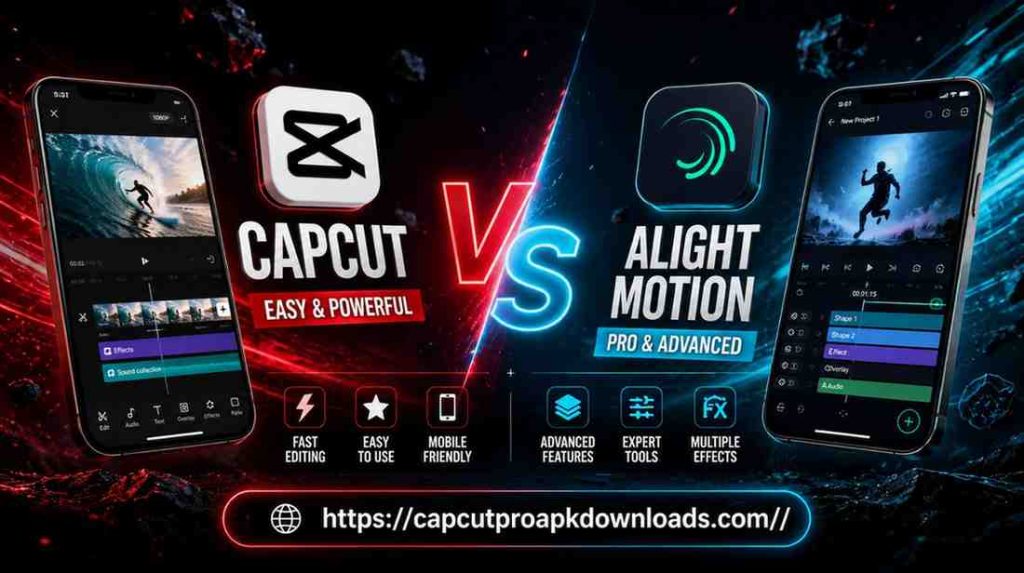
CapCut’s interface is the reason it has the audience it does. Everything is icon-driven, the timeline is forgiving, and undo actually works the way you’d expect. Alight Motion, on the other hand, throws layers, properties panels, and a keyframe timeline at you immediately. It’s not badly designed, it’s just designed for a different kind of user someone who wants control, not convenience.
Editing Tools and Flexibility
Basic trimming, splitting, and merging are equally smooth on both apps, so that’s not where the gap shows. Where Alight Motion pulls ahead is in transformations like skew, warp, and precise color grading, which feel built for someone who wants to fine-tune rather than just assemble. CapCut compensates with sheer breadth its toolset is wide rather than deep, optimized for quick decisions over precision.
Keyframe Animation and Motion Graphics
This is genuinely the biggest gap between the two apps, and if your work depends on this, it should be your deciding factor. Alight Motion’s keyframe engine lets you animate nearly every parameter with custom easing curves, the kind of control you’d expect from After Effects. CapCut’s keyframes exist, but they’re functional rather than expressive fine for a logo sliding in, not built for intricate character or typography animation.
Multi-Layer Editing Support
Alight Motion’s layer system supports grouping, blending modes, and mask nesting in a way that genuinely resembles desktop compositing software. CapCut supports layering video, text, and graphics too, but it’s flatter and more linear, built for stacking elements quickly rather than building complex visual compositions.
Effects, Filters, and Visual Enhancements
CapCut wins on volume thousands of trendy filters and AI-driven effects that are updated constantly to match whatever’s viral that month. Alight Motion takes a different approach entirely, letting you build effects from mathematical functions and procedural textures, which means what you create is genuinely original rather than something a million other accounts are also using this week.
Text Animation and Font Styles
CapCut offers a large free font library along with accurate auto-captioning, which covers most creators’ needs without extra effort. Alight Motion goes deeper on customization character spacing, line height, custom textures making it the better choice if you’re building kinetic typography or stylized title sequences rather than standard captions.
Templates and Presets
CapCut’s template library is enormous and refreshed constantly, which is exactly why it’s the faster app for trend-based content. Alight Motion’s preset ecosystem is smaller and mostly community-shared (XML files traded across Telegram groups and Discord servers), but it gives you a starting point you can still customize heavily rather than a fixed plug-and-play result.
Audio Editing and Beat Sync
CapCut integrates a large, social-cleared music library along with automatic beat detection, which makes syncing cuts to trending audio almost effortless. Alight Motion offers more technical depth here too multi-track mixing and precise audio keyframing for volume and pitch but you’re doing that sync work manually rather than letting the app detect it for you.
Vector Graphics Support
This one isn’t close. Alight Motion lets you draw, edit, and animate vector shapes natively, similar to Illustrator, and those vectors stay scalable and resolution-independent through animation. CapCut has no real equivalent here; it’s simply not built around vector workflows.
Export Quality and Supported Formats
Both apps export up to 1080p and 4K depending on your device’s capability. Alight Motion gives you more granular control over bitrate, frame rate, and codec, which matters if you’re delivering work professionally. CapCut streamlines this instead, optimizing automatically for fast upload to social platforms, which is honestly what most casual creators actually want.
Performance and Rendering Speed
CapCut is noticeably more optimized for stability, even with longer 4K clips, and renders quickly on most mid-range Android devices I’ve tested it on. Alight Motion, because of its layer and effects engine, can slow down or occasionally crash on older phones once you’re working with hundreds of keyframes or heavy projects something to keep in mind if your device is a few years old.
Device Compatibility (Android, iPhone and PC)
Both apps run well on Android and iOS. CapCut has expanded into desktop and web versions too, which means you can move a project between your phone and laptop without much friction. Alight Motion remains primarily mobile-first, so if you want a desktop-native experience, CapCut currently has the edge.
Social Media Optimization for TikTok, Instagram and YouTube
CapCut’s direct ties to ByteDance mean it’s tuned to TikTok formats and trends almost instantly. Alight Motion isn’t tied to any platform’s trend cycle; it’s better suited for creators who want their short-form content to carry a distinct visual identity rather than blend into the trend wave.
Advanced Features Comparison
AI Editing Tools in CapCut
CapCut’s AI suite is genuinely one of its strongest selling points in 2026. Auto-captioning is fast and surprisingly accurate, smart cutting syncs your footage to music automatically, and AI-based portrait and style tools let you change the look of a clip without manual color grading. For creators working on volume multiple reels a week these tools alone can cut editing time significantly.
Professional Motion Design Tools in Alight Motion
Alight Motion doesn’t compete on AI; it competes on craft. Its keyframe system, layer blending, and vector tools are built for people who want to design something frame by frame rather than automate it. If your goal is a custom animated intro or a logo reveal that looks deliberately made rather than templated, this is where Alight Motion earns its reputation.
Transitions, Effects and Creative Controls
CapCut leans into pre-built transitions and 3D text effects that you can drop in within seconds. Alight Motion builds its 3D-style illusions through layered 2D elements and parallax movement, which takes longer to set up but gives you a result that’s genuinely yours rather than a stock transition everyone recognizes from a thousand other reels.
CapCut vs Alight Motion for Motion Graphics
Why Alight Motion Is Better for Complex Animations
If you’re animating a logo, building kinetic typography, or creating a multi-layer character animation, Alight Motion’s depth of control simply isn’t something CapCut was built to offer. The custom easing curves alone make a noticeable difference in how “expensive” an animation looks once it’s finished.
Why CapCut Is Better for Fast Social Media Content
For daily content, trend-jumping, or anything where turnaround time matters more than originality, CapCut’s templates and AI tools let you go from raw footage to a published reel in minutes. There’s no contest here speed is CapCut’s entire design philosophy.
Workflow Comparison
Template Based Editing in CapCut
CapCut’s workflow generally starts with a template or a trending audio clip, and you build around it dropping in your footage, adjusting timing slightly, and exporting. It’s a workflow optimized for volume.
Custom Project Workflow in Alight Motion
Alight Motion’s workflow starts from a blank canvas more often than not. You’re building layers, setting keyframes, and adjusting curves manually, which takes longer but means the final product reflects decisions you actually made rather than a template someone else designed.
Pricing and Subscription Comparison
CapCut Free vs Pro
CapCut’s free tier is genuinely usable for almost everything most creators need, including a large chunk of its AI tools. The Pro subscription unlocks premium templates, extra cloud storage, and some advanced AI features, but I’d say most casual users in India and Pakistan never actually need to upgrade.
Alight Motion Free vs Premium
The free version of Alight Motion works, but it leaves a visible watermark and restricts access to some effects and export settings. To remove the watermark and unlock the full toolkit, you’ll need a monthly or annual subscription something to factor in if you’re a student or just starting out and budget matters.
Which App Gives Better Value?
For casual creators and social media-first users, CapCut delivers more value for free, hands down. For someone serious about motion design or visual effects work, Alight Motion’s paid tier becomes a necessary investment rather than an optional extra, simply because there’s no real free substitute for what it offers.
Pros and Cons Comparison
CapCut Pros and Cons
Pros: Beginner-friendly, fast rendering, huge free template library, strong AI tools, available across mobile, desktop, and web.
Cons: Limited depth in keyframe animation, no vector graphics, heavier reliance on templates can make content look repetitive.
Alight Motion Pros and Cons
Pros: Industry-leading mobile keyframe animation, vector graphics support, professional-grade layer management, strong community presets.
Cons: Steep learning curve, watermark on free tier, can struggle on older or low-RAM devices.
CapCut vs Alight Motion | Which One Should You Choose?
Choose CapCut If…
You’re focused on TikTok, Instagram Reels, or YouTube Shorts and need to publish frequently. You want auto-captions and stabilization without manual setup. You’d rather spend your time creating content than learning software.
Choose Alight Motion If…
You’re building animated logos, kinetic typography, or VFX-style sequences. Your work needs vector drawing, masking, or detailed keyframe control. You’re willing to invest real time into learning a more technical interface.
CapCut vs Alight Motion for Beginners
Which App Is Easier to Learn?
There’s no real debate here CapCut is significantly easier to pick up. I’ve seen people open it for the first time and publish a decent edit the same day. Alight Motion, by comparison, genuinely needs a weekend (at minimum) before the interface stops feeling intimidating.
Best Choice for New Creators
If you’re just starting your content journey, start with CapCut. Once you’re comfortable with basic editing and want to push your visuals further say, adding a custom animated intro to your channel that’s the natural point to start exploring Alight Motion alongside it.
CapCut vs Alight Motion for Professional Editing
Which App Offers More Creative Control?
Alight Motion, without question. The combination of vector tools, layer blending, and full keyframe control gives you a level of creative freedom CapCut simply isn’t designed to provide, since CapCut prioritizes speed over granular control by design.
Best Choice for Advanced Users
If you’re a freelance motion designer, a YouTuber building custom intros, or someone creating branded animated content for clients, Alight Motion is the tool that scales with your skill. CapCut will always feel slightly capped once you start wanting fine-grained control.
Performance and Reliability Comparison
Speed and Stability
In my own testing across a mid-range and a flagship Android device, CapCut consistently rendered faster and crashed far less often, even on longer 4K projects. Alight Motion handled simple projects fine but became noticeably sluggish once I pushed past a hundred or so keyframes on the older phone.
App Size and Device Requirements
CapCut is the lighter app to run day-to-day, and it’s more forgiving on devices with limited RAM. Alight Motion, especially with complex projects, benefits from a newer phone with more processing power something worth checking before you commit to a big animation project on an older device.
Is CapCut Better Than Alight Motion?
Honestly, this doesn’t have a single correct answer, and anyone who gives you one without asking what you’re editing isn’t being fully honest with you. CapCut wins if speed, templates, and social relevance are what you need. The other app wins if creative control, vector work, and motion graphics depth matter more than convenience. They’re not really competing for the same job.
Recommendation Based on Real-World Usage
If I’m being completely honest about how I actually use these two apps day to day: CapCut Pc is what I open when I need to turn around a reel quickly and post it the same evening. Alight Motion is what I open when a client wants an animated logo intro, or I want content that doesn’t look like it came from the same template everyone else on my feed is using. Most serious creators I know end up with both installed, switching based on the project rather than picking a permanent favorite and that’s genuinely the most practical advice I can give you here.
Frequently Asked Questions
Which is better, CapCut or Alight Motion?
It depends on your goal. CapCut is better for fast, template-based social media editing, while Alight Motion is better for detailed motion graphics and custom animation work.
Is Alight Motion more powerful than CapCut?
In terms of animation control, vector graphics, and layer-based editing, yes, Alight Motion is more powerful. CapCut is more powerful in terms of speed, AI tools, and ease of use.
Which app is better for beginners?
CapCut is significantly easier for beginners thanks to its intuitive interface and ready-made templates.
Which app is better for motion graphics?
Alight Motion is the clear choice for motion graphics, thanks to its advanced keyframe animation and vector tools.
Is CapCut free?
Yes, CapCut’s free version covers most editing needs, including many AI tools. A Pro subscription unlocks premium templates and extra features.
Can I use Alight Motion on PC?
Alight Motion is primarily a mobile-first app for Android and iOS. It doesn’t have a native, full-featured PC version the way CapCut does.
Which app exports higher-quality videos?
Both support up to 4K export, but Alight Motion gives you more granular control over bitrate, frame rate, and codec settings for professional output.
Which editor is better for TikTok and YouTube Shorts?
CapCut is better suited for TikTok and YouTube Shorts, since it’s built around trends, templates, and fast turnaround that match how those platforms work.
Conclusion
After using both apps extensively across dozens of CapCut vs Alight Motion projects, here’s where I’ve landed: there isn’t a single winner in this debate, only the right tool for what you’re actually trying to make. CapCut is the app I reach for when speed and reach matter daily content, trends, quick turnarounds.
Alight Motion is the app I reach for in the CapCut vs Alight Motion comparison when I want something that looks deliberately crafted rather than assembled from a template.
If you’re starting out or running a content page where consistency matters more than originality, install CapCut today and you’ll be editing comfortably within the hour. If you’re chasing a more distinctive, animated style and don’t mind a learning curve, give Alight Motion a real week before judging it that’s roughly how long it took me to stop fighting the interface and start actually creating with it.