CapCut vs InShot | Which Video Editing App Is Better in 2026?
I have spent the last three years editing on both apps reels for a clothing brand, vlogs for my YouTube channel, and family montages on weekends. So when someone asks me about CapCut vs InShot, I do not read off a spec sheet. I tell them what saved me at midnight on a deadline and what slowed me down. This guide is that honest answer, fully updated for 2026.
Quick Verdict – CapCut or InShot?
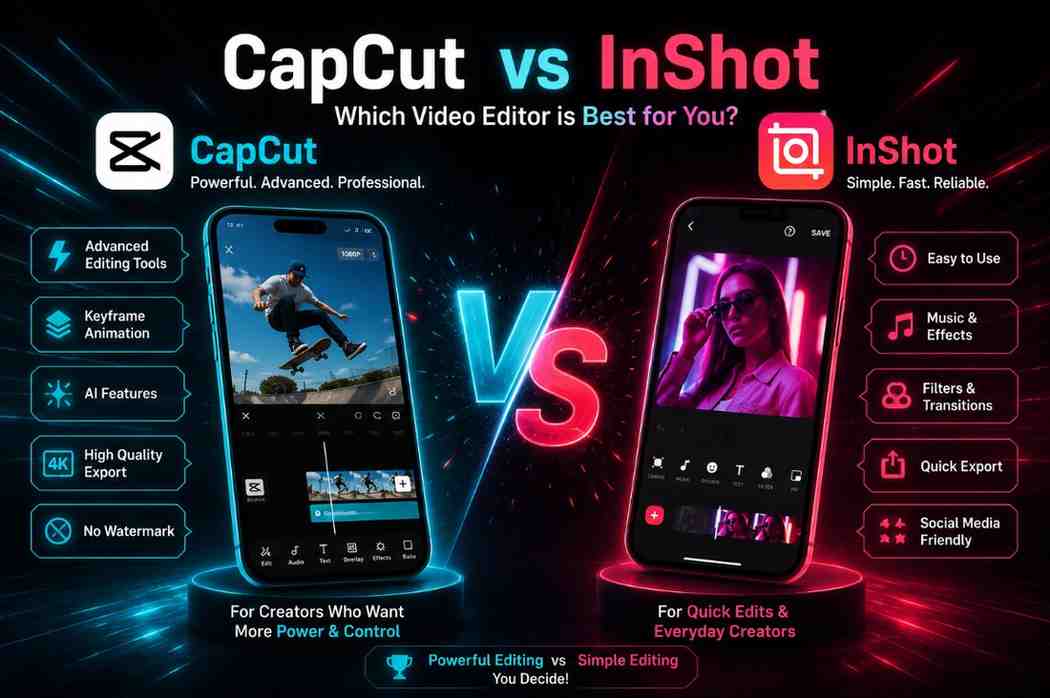
CapCut wins for power, AI tools, and trending templates. InShot wins for speed, simplicity, and clean workflow. The CapCut vs InShot decision really comes down to what you make and how often you make it.
| Feature | CapCut | InShot |
|---|---|---|
| Best For | Advanced edits, trends | Quick reels, easy edits |
| Learning Curve | Medium (2-3 days) | Easy (30 minutes) |
| Free Plan | Generous, Pro watermark on some assets | Watermark + ads |
| Pro Yearly | $74.99 – $179.99 (region-based) | $17.99 – $19.99 |
| AI Features | Strong | Basic |
| Multi-layer Timeline | Unlimited | Limited |
| Desktop Version | Windows, Mac, Web | Mobile only |
| Export Quality | Up to 4K, 60fps | Up to 4K (Pro) |
| Older Phone Performance | Heavy | Smooth |
Choose CapCut If…
- You make TikTok, Reels, or YouTube Shorts and want to stay on trend.
- You want AI features like auto-subtitles, background removal, and voice cloning.
- You edit on phone and laptop both, and need cloud sync.
- You enjoy learning a tool that pays you back in control later.
Choose InShot If…
- You want to trim, add music, and post within five minutes.
- Your phone is mid-range or older and struggles with heavy apps.
- You prefer paying once for lifetime access over monthly subscriptions.
- You make casual content family videos, status posts, simple reels.
Best Choice for Beginners, Creators, and Social Media Users
For absolute beginners, I always recommend InShot first the interface does not throw a hundred buttons at you on day one. For creators chasing growth on TikTok or Reels, CapCut is the obvious pick because it is built by ByteDance, the same company behind TikTok. Templates literally sync with what is trending that week.
What Is CapCut?
Before I dive deeper into the CapCut vs InShot comparison, let me explain what CapCut actually is. CapCut is a free video editor by ByteDance, launched in 2020. It now sits at over a billion downloads and runs on Android, iOS, Windows, Mac, and the web. I switched to CapCut full-time in late 2023 after editing a product reel that needed motion tracking, auto-captions, and a green screen swap. InShot would have taken me 45 minutes of workarounds. CapCut handled it in eight.
Key Features That Make CapCut Popular
- Multi-layer timeline stack videos, audio, text, and effects without limits.
- AI Auto-Cut feed it raw footage, get a rough cut synced to music.
- Trending templates that drop almost weekly.
- Chroma key, keyframe animation, and motion tracking real pro tools.
- Auto-captions with around 85% accuracy in English from my tests.
- Cloud storage so you start on phone and finish on desktop.
Who Should Use CapCut?
CapCut is for creators who think in trends. If your style involves beat-synced cuts, animated subtitles, or viral template formats, this is your editor. It is also the right pick for small businesses running paid ads the templates make product videos look polished without hiring an editor.
Supported Platforms and Device Compatibility
CapCut runs on Android 8.0+, iOS 13+, Windows 10/11, macOS Big Sur+, and any modern browser. On my Samsung Galaxy A52 a mid-range phone from 2021 CapCut occasionally lags with four or more video layers. On my iPhone 14 Pro, it runs without a stutter.
What Is InShot?
InShot started in 2014 as a photo editor before adding video tools. Built by InShot Inc., it has crossed 500 million downloads on Google Play alone. It is mobile-only no desktop version in 2026 and that is both its biggest limitation and its biggest strength. I have had InShot installed since 2019. It is the app I still open when my mother asks me to put music behind a family video, because she figures it out without my help.
Core Features of InShot
- Clean single-screen workflow with every tool one tap away.
- Fast trim, split, merge, and reverse with no lag.
- Built-in music library and voiceover recording.
- Natural-looking filters and color adjustments.
- Instant aspect ratio switching between 9:16, 1:1, and 16:9.
- Solid photo editing and collage maker a leftover strength from its photo-editor roots.
Who Is InShot Best For?
InShot fits beginners, casual creators, and anyone who values speed over advanced control. If you post Instagram stories, simple reels, or YouTube Shorts where the focus is the content and not the editing wizardry, InShot delivers without a tutorial.
Android and iPhone Compatibility
InShot runs on Android 6.0+ and iOS 13+. It performs noticeably better on older devices than CapCut. I tested it on a four-year-old Redmi Note 9 and it still exported 1080p video without crashing.
CapCut vs InShot: Main Differences at a Glance
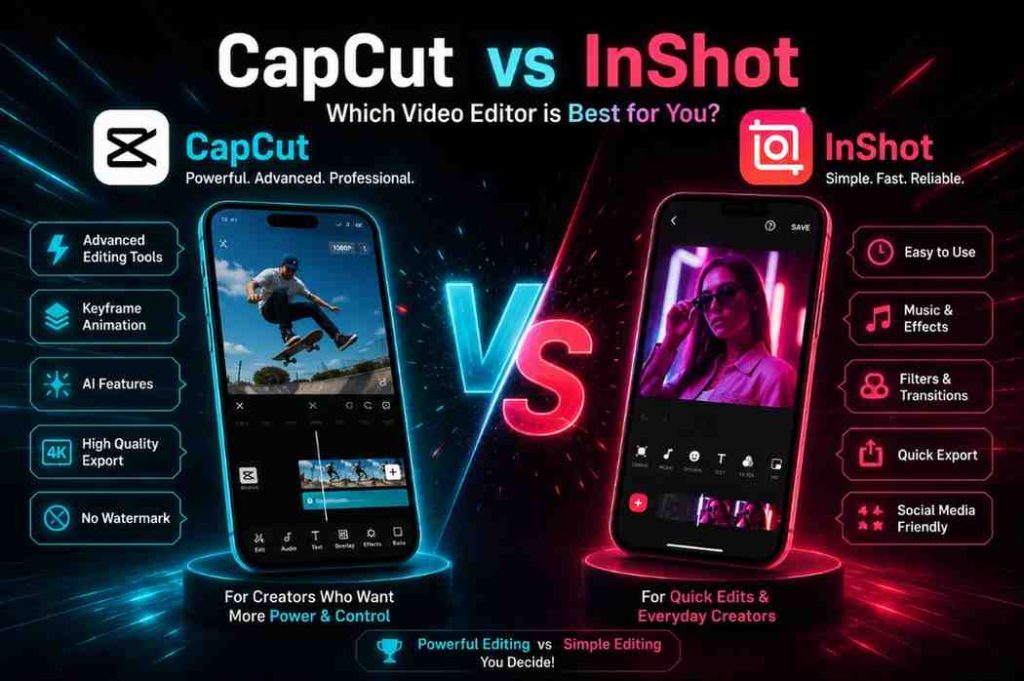
Both apps trim clips, add music, and export. But how they feel and how they handle pressure are very different. Here is where the CapCut vs InShot gap actually shows up.
User Interface and Editing Experience
CapCut spreads tools across multiple panels timeline at the bottom, preview at the top, scrollable tool bar in between. After a week of use, the layout starts to feel logical. InShot uses a single-screen approach with almost no nested menus, which is why beginners pick it up so fast.
Editing Speed and Workflow
For a basic 30-second reel trim two clips, add music, export InShot wins by about three minutes. For a 60-second video with subtitles, transitions, and a background swap, CapCut wins by ten. The crossover is whenever your video needs layering or AI assistance.
Learning Curve for Beginners
InShot has almost no learning curve. My niece picked it up at thirteen without a tutorial. CapCut takes two to three days of casual use before the menus stop feeling overwhelming. Templates help bridge that early gap you can ship a slick video on day one without understanding keyframes.
Free Features vs Paid Features
CapCut’s free tier is unusually generous full editor, multi-track timeline, basic AI, and 1080p export with no watermark, provided you avoid Pro-marked assets. InShot’s free tier is more restrictive: every export carries a watermark, ads pop up between actions, and several filters and music tracks sit behind the paywall.
Export Quality and Watermark Comparison
Both apps support 4K at 60fps on their Pro tiers. Free CapCut still gives you watermark-free 1080p at 60fps. Free InShot caps useful export at 1080p and stamps its logo in the bottom-right which only goes away if you upgrade.
Video Editing Features Comparison
Basic Editing Tools
Both apps cover the basics well, but the small touches differ in CapCut vs InShot.
Trim, Split, Crop, and Merge
InShot’s split snaps cleanly at the playhead in one tap. CapCut needs a long-press first, then split one extra step that adds up over a long edit. Crop and merge feel identical on both.
Speed Control and Slow Motion
CapCut offers smooth speed curves from 0.5x to 3x mid-clip without choppy transitions. InShot tops out at 100x for time-lapses but uses fixed steps, which feels less cinematic. For slow-mo reaction shots, CapCut wins.
Transitions and Effects
CapCut ships with hundreds of transitions sorted by category basic, motion graphics, camera moves, glitch, light. InShot’s library is smaller but every preset feels usable. CapCut gives you more range; InShot keeps things from looking tacky.
Advanced Editing Features
Multi-Layer Timeline Editing
This is where CapCut leaves InShot behind. CapCut supports unlimited video and audio layers. I have built reels with six video tracks stacked for picture-in-picture effects. InShot caps you at one main track with overlay options fine for basics, frustrating for anything complex.
Keyframe Animation
CapCut offers full keyframe control over position, scale, rotation, and opacity. You can animate a sticker sliding across the screen with custom timing. InShot has limited keyframing mainly opacity and basic movement which works for simple animations but not detailed motion design.
Chroma Key and Green Screen
Both support chroma key, but CapCut’s edge detection on hair and complex backgrounds is noticeably cleaner. I tested both with the same green-screen clip of a friend with curly hair. CapCut preserved the strands. InShot left faint green halos.
AI-Powered Editing Tools
CapCut leads here by a wide margin. Its AI suite covers auto-cut, background removal, voice cloning, AI Relight, script-to-video, and transcript-based editing. InShot’s AI is modest auto-captions, smart cut for dead air, and basic background remover. If AI is part of your workflow, the CapCut vs InShot choice is already made.
Auto Captions and Text Animation
CapCut’s auto-captions hit around 85% accuracy in my English tests and offer animated styles synced to TikTok trends. InShot’s accuracy sits closer to 75%, and the animation options feel basic by comparison.
Templates, Filters, and Visual Effects
CapCut Templates for TikTok and Shorts
In the CapCut vs InShot debate, this section usually decides things for short-form creators. CapCut’s template library updates with whatever is trending on TikTok. Tap a template, drop in clips, and the app handles transitions, music sync, and text overlays. For trend-driven creators, this saves hours every week.
InShot Filters and Presets
InShot does not really do templates it leans on filters and effect packs. Its cinematic filters (faded teal-orange, soft VHS) look genuinely good on the first try. You build your own style instead of borrowing one.
Which App Offers Better Trending Effects?
CapCut wins easily on trends. Because of its ByteDance connection, viral effects appear in CapCut sometimes weeks before any other editor.
Best App for Viral Social Media Content
If your goal is to fit today’s algorithm fast cuts, trending sounds, animated captions CapCut is built for that exact job. InShot makes timeless content that ages well but does not chase trends.
Audio Editing and Music Library Comparison
Background Music and Sound Effects
CapCut’s library is massive and includes trending TikTok sounds you can use directly. InShot has a smaller library but every track is licensed for commercial use, which matters if you run a brand. Both support importing your own audio.
Voiceover Recording Tools
Both record voiceovers directly into the timeline with no quality loss. CapCut adds voice changers, AI text-to-speech in multiple languages, and noise reduction. InShot keeps it simple record, adjust volume, done.
Audio Sync and Beat Editing
CapCut auto-detects beats and marks them on the timeline so you can sync cuts precisely. InShot has no beat detection you sync by ear, which works but takes longer.
Copyright-Free Music Availability
Both offer royalty-free tracks, but licensing terms differ. CapCut’s library has some tracks marked personal-use-only, which can trigger copyright claims on monetized YouTube videos. InShot’s free music is generally cleared for commercial use.
Text, Captions, and Sticker Features
Animated Text Options
CapCut offers preset animated text synced to trending TikTok formats bouncing titles, glitch reveals, typewriter effects. InShot’s animated text is simpler fade in, slide in, scale up. CapCut is better for branded looks; InShot is better for clean, readable titles.
Subtitle and Auto Caption Tools
CapCut’s auto-caption is one of its strongest tools accurate transcription, automatic timing, and animated styles. InShot has auto-captions but the styling is limited and accuracy is lower.
Emoji, GIF, and Sticker Support
CapCut, including CapCut for PC, includes a built-in sticker library plus GIPHY integration with custom timing for animated stickers. InShot supports stickers and emojis but with a smaller library and no GIF support.
Which App Is Better for Social Media Branding?
For brand consistency across reels and shorts, CapCut wins because you can save custom text styles, color palettes, and templates. InShot has no save-as-template feature, so brand consistency takes more manual work.
Photo Editing Support and Image Tools
Image Enhancement Features
InShot has the edge here because it started as a photo editor. Brightness, contrast, saturation, and shadow controls feel more refined. CapCut handles photos competently but the tools feel built around video.
Collage and Thumbnail Creation
InShot offers a dedicated collage maker with multiple layouts and customizable borders. CapCut has no built-in collage feature. For YouTube thumbnails or Instagram grid posts, InShot is the clear pick.
Filters and Photo Presets
InShot’s photo filters look natural and have aged well across updates. CapCut’s filters work fine but can over-saturate still images.
Best App for Quick Photo Edits
InShot, hands down. For collages, thumbnails, and Instagram posts, it is the better tool. CapCut is overkill for still images.
Performance, Stability, and Device Optimization
App Performance on Low-End Phones
InShot runs smoothly on phones as old as 2020. I tested it on a Redmi Note 9 and it exported a 1080p video without breaking a sweat. CapCut on the same phone crashed twice during a multi-layer edit. If you have a budget phone, InShot is the safer choice in the CapCut vs InShot battle.
Rendering Speed and Export Time
On an iPhone 14 Pro, CapCut renders a 60-second 4K video in about 45 seconds. InShot takes around 30 seconds for the same project. InShot’s lighter footprint means faster exports across the board.
App Crashes and Lag Issues
CapCut’s heavy feature set comes with occasional crashes, especially on Android devices with less than 6GB of RAM. InShot rarely crashes over six years of use, I can count the crashes on one hand.
Battery and Storage Usage
CapCut installs at around 300MB and grows with cached templates and AI assets. InShot sits closer to 100MB. Battery drain during a 30-minute edit session runs roughly 15% on CapCut versus 9% on InShot from my measurements.
CapCut vs InShot Pricing Comparison
Pricing is often the deciding factor in the CapCut vs InShot debate, especially for creators on a budget.

Free Plan Features
CapCut’s free plan gives you the full editor, multi-track timeline, basic AI, 1080p export, and most templates. Pro-marked assets add a watermark. InShot’s free plan watermarks every export, shows ads between actions, and locks several filters and music tracks.
Premium Features Breakdown
CapCut Pro unlocks unlimited AI auto-edit, unlimited auto-captions, premium templates, 4K export, cloud storage, voice cloning, and a full commercial license. InShot Pro removes the watermark, removes ads, unlocks all filters and music, and enables 4K export.
Subscription Pricing Comparison
CapCut Pro pricing shifts often. As of mid-2026, the going rate is around $7.99 per month or $74.99 per year via the web though in the US and UK, the app-store price climbs to $19.99 per month or $179.99 per year. InShot Pro is straightforward: $3.99 monthly, $17.99 yearly, or roughly $39.99 to $64 for a lifetime purchase depending on your region.
Which App Offers Better Value for Money?
If you edit casually, InShot’s lifetime plan at around $40 is unbeatable pay once, never think about it again. If you edit professionally and lean on AI features, CapCut Pro pays for itself quickly for high-volume creators. For light users, the free tier is more than enough some even prefer the CapCut Old Version APK for a simpler experience.
Pros and Cons of CapCut
Pros
- Generous free tier with no watermark on most exports.
- Strong AI suite auto-cut, voice clone, background removal.
- Unlimited multi-layer timeline editing.
- Trending TikTok templates updated almost weekly.
- Cross-platform mobile, desktop, and web.
- Cloud storage with project sync across devices.
Cons
- Steeper learning curve for new users.
- Performance issues on low-end phones.
- Pricing varies confusingly by region and platform.
- Some free templates and effects still carry a Pro watermark.
- Heavy on storage and battery.
Pros and Cons of InShot
Pros
- Simple, beginner-friendly interface.
- Runs smoothly on older and budget phones.
- Lifetime purchase option available.
- Strong photo editing and collage maker.
- Cleaner audio licensing for commercial use.
- Lightweight install with low battery drain.
Cons
- Watermark on every free export.
- Ads in the free version.
- Limited multi-layer editing.
- Smaller template and effects library.
- No desktop or web version.
- AI features lag well behind CapCut.
Best App Based on Your Content Style
Best for TikTok Creators
CapCut, without a doubt. The TikTok integration is baked in templates sync with trending sounds, captions match popular formats, and direct publishing works inside the app.
Best for Instagram Reels
CapCut for creators chasing reach with trend-based content. InShot for creators building a clean, consistent feed where editing should not distract from the content itself.
Best for YouTube Shorts
CapCut for visually heavy edits with animated captions and transitions. InShot for talking-head Shorts where you just need clean cuts and clear text.
Best for Casual Editing
InShot wins easily. Birthday videos, family montages, status updates the lower friction is worth more than the missing advanced features.
Best for Professional-Looking Videos
CapCut. Multi-layer editing, keyframe animation, and the AI suite let you produce content that rivals work made on desktop editors.
CapCut vs InShot for Beginners
Which App Is Easier to Learn?
InShot is easier by a wide margin. Most beginners produce a watchable first edit within fifteen minutes. CapCut needs a couple of days before everything clicks, though built-in templates soften the initial wall.
Which One Saves More Time?
For simple edits, InShot saves time. For repeat workflows that lean on templates, CapCut saves more time after the first week of getting used to it.
Best Mobile Video Editor for First-Time Users
InShot is the safer first recommendation. Once a beginner gets comfortable and wants more control, switching to CapCut is the natural next step in the CapCut vs InShot journey.
CapCut Alternatives and InShot Alternatives
If neither side of the CapCut vs InShot match feels right, there are solid alternatives worth knowing about.
VN Video Editor
VN is the closest free competitor to CapCut. It offers multi-layer editing, keyframes, and chroma key with no watermark on the free tier. The interface is less polished than CapCut but the features are surprisingly deep.
KineMaster
KineMaster has been around since 2013 and remains a favorite among Android creators who want desktop-style editing on mobile. More powerful than InShot but pricier than CapCut Pro.
Adobe Premiere Rush
If you already use Adobe Creative Cloud, Premiere Rush integrates cleanly with Premiere Pro on desktop. Overkill for casual editing but excellent for creators who finish on a computer.
Canva Video Editor
Canva is built for marketers who want quick branded video posts without learning a real editor. Limited compared to CapCut and InShot, but solid for social media managers handling multiple brands.
Final Verdict – Is CapCut Better Than InShot?
If I had to pick one app and delete the other tomorrow, I would keep CapCut. But that says more about my workflow than it does about the apps. The honest CapCut vs InShot verdict depends on what kind of editor you actually are.
Best Overall Winner
CapCut wins on features, AI, and creative range. It is the more powerful tool by a wide margin in 2026.
Best for Simplicity
InShot wins on simplicity. Nothing else on mobile comes close to its learning curve.
Best for Advanced Editing
CapCut, without competition between these two. Multi-layer timeline, keyframes, AI tools, and a desktop version make it the only serious choice for advanced edits.
Which App Should You Download in 2026?
Download both. They are free to install, and they serve different jobs. Use InShot for quick edits and casual posts. Use CapCut when you want to push a video further or jump on a trend. That is exactly how I use them and after three years of the CapCut vs InShot comparison playing out in my own work, I see no reason to commit to just one.
Frequently Asked Questions
Is CapCut better than InShot for beginners?
No. InShot is easier for beginners because of its simpler interface and shorter learning curve. CapCut is more powerful but takes two to three days to feel comfortable. If you are completely new to video editing, start with InShot and move to CapCut once you outgrow it.
Does InShot have a watermark?
Yes. The free version of InShot adds an InShot logo to the bottom-right corner of every export. Removing it requires upgrading to InShot Pro $3.99 per month, $17.99 per year, or roughly $39.99 for a lifetime purchase.
Is CapCut completely free?
Mostly. CapCut’s free plan gives you the full editor, multi-track timeline, basic AI, and 1080p export with no watermark. However, premium templates and effects marked with a Pro badge add a watermark unless you upgrade to CapCut Pro.
Which app is better for TikTok videos?
CapCut is clearly better for TikTok. It is developed by ByteDance the same company that owns TikTok so trending templates, effects, and sounds appear in CapCut before any other editor. Direct publishing to TikTok also works inside the app.
Can I edit YouTube Shorts using InShot?
Yes. InShot supports the 9:16 aspect ratio used for YouTube Shorts and includes presets for the format. For simple talking-head Shorts or casual content, InShot works well. For animated captions or trend-based Shorts, CapCut is better.
Which app works better on low-end Android phones?
InShot. It is lighter on storage, uses less RAM, and rarely crashes on phones with under 4GB of memory. CapCut’s heavy feature set causes occasional crashes on older or budget Android devices.
Is CapCut safe to use in 2026?
CapCut is safe to install and use for personal editing. Some users raise data privacy concerns because of its ByteDance ownership and the same scrutiny TikTok has faced. If data sensitivity matters to you, read CapCut’s current privacy policy before signing in with personal accounts.
Which app exports better video quality?
Both apps support up to 4K resolution at 60fps on their Pro plans. On free tiers, CapCut supports 1080p at 60fps with no watermark, while InShot caps free exports at 1080p with a watermark. Overall quality is comparable your phone’s camera matters more than the editor at the export stage.
Whichever app you pick, the editor is just the canvas. What you put on it your story, your timing, your voice matters more than the tools.